Free Blender add-on tapers stylised hair strands in one click
MT Hair Taper, a free 19.2 KB add-on for Blender 4.0 and later, thins grid-style hair meshes toward the tips without changing their length or flow.
3D artist MOTOMODEL has released MT Hair Taper, a free Blender add-on that narrows hair-strand meshes toward their tips. The current build is v1.28.3, released on 16 October 2026, two days after v1.25.0 went up on the creator’s Booth store. The download is a single 19.2 KB zip, and it needs Blender 4.0 or later. 80 Level covered it on 24 October.
What the add-on actually does
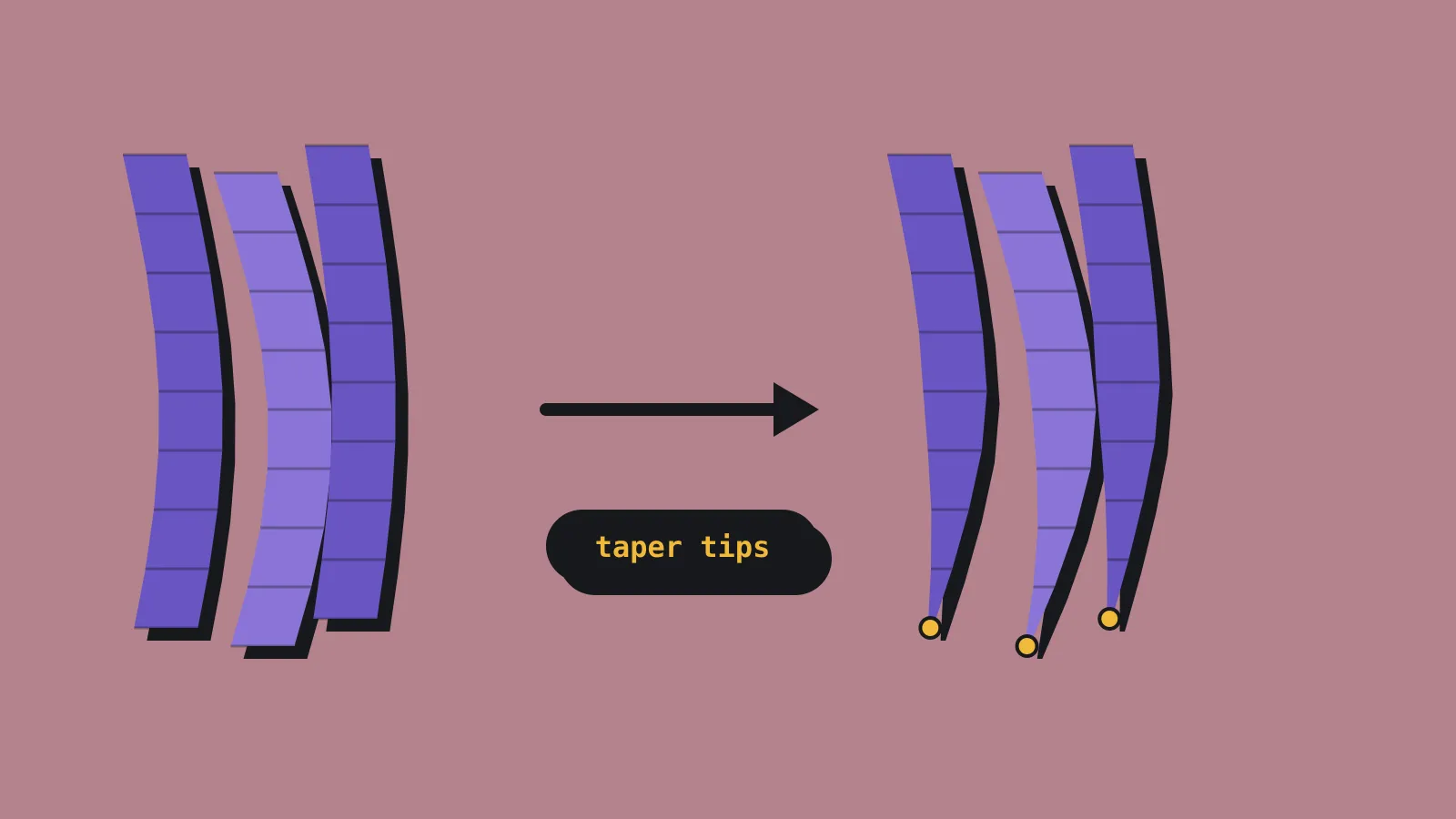
Plenty of stylised characters, especially anime-style ones, use hair built from strand meshes. These are long clumps of polygons laid out in a grid, with rows of vertices running from root to tip. Getting each clump to narrow to a neat point usually means scaling rows by hand, one strand at a time.
MT Hair Taper does that scaling for you. You select a row of vertices at a tip, or partway along a strand, and run the tool from the N panel (the sidebar you open with the N key). According to the Booth page, it shrinks the cross-section of each row while leaving its position along the strand alone. So the strand keeps its length and its curve, and only gets thinner.
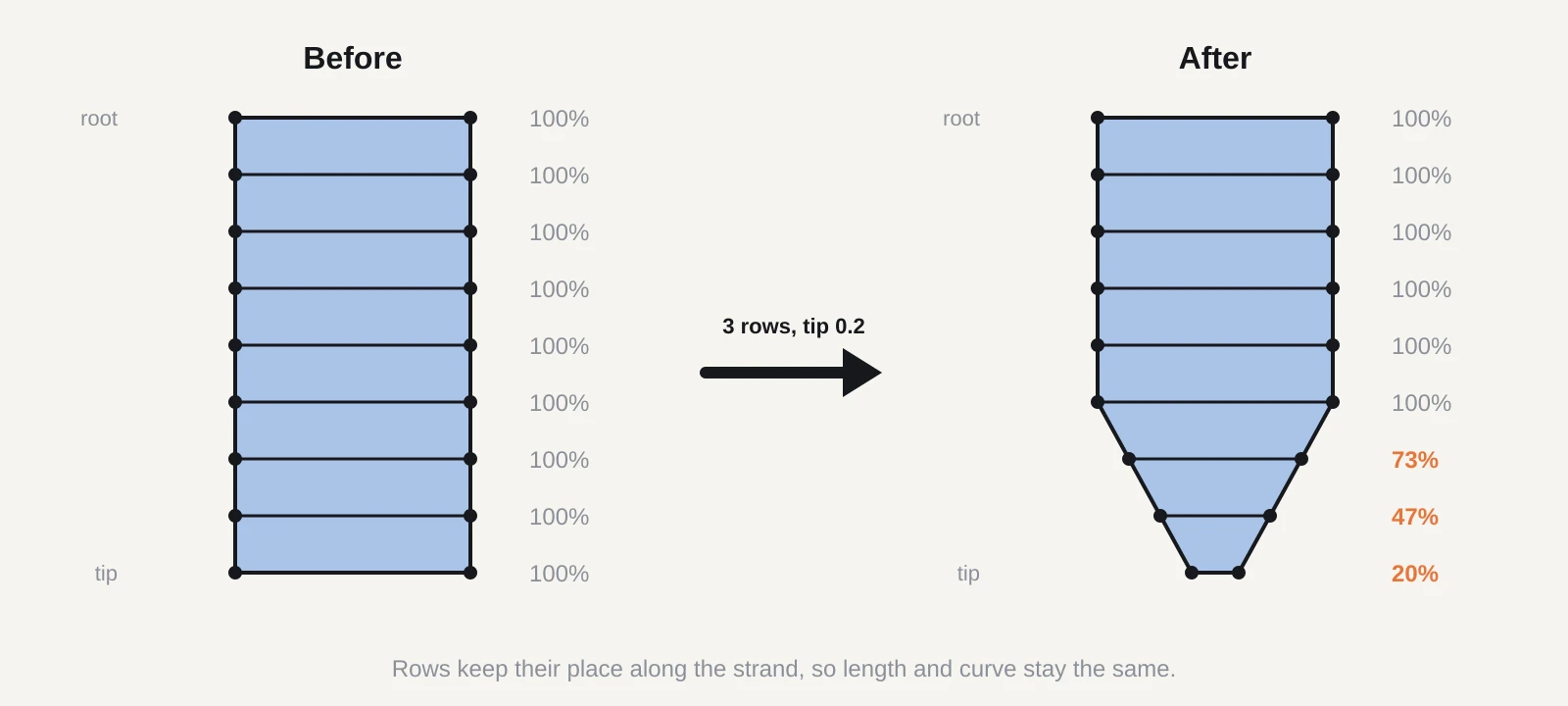
The settings are short and clear:
- Influence rows sets how many rows back toward the root get blended in.
- Tip thickness runs from 0 (collapse to a point) to 1 (no change).
- Falloff offers presets or a custom curve you can edit.
- Centre mode tapers each tip around its own centre, or the whole selection around one shared centre, like a lattice.
An extra option pulls width, thickness and tip length together into a single point. Pick a middle row and the taper spreads both ways from it.
It works on flat cards and on closed tube meshes. The creator says it is a poor fit for meshes that are mostly triangles, have radial vertex flow, or have irregular divisions. The tool stops at merges, branches and non-grid areas so it doesn’t drag the wrong vertices along. The v1.28.3 update made that stopping behaviour consistent for the per-tip centre mode. The interface is available in English, Japanese, Korean and both forms of Chinese, and follows Blender’s language setting.
How it compares with doing it by hand
Blender already gives you several ways to taper hair. The right one depends on how your hair started life.
Legacy curves. If you model strands as Bezier curves with a bevel, you can taper them with a Taper Object or by keying radius per control point, as covered in the Blender manual. That is fully non-destructive until you convert to mesh. Many stylised hair workflows stay in curves for exactly this reason.
Hair curves and geometry nodes. Since Blender 3.5, the Essentials library ships 26 hair node-group assets. One of them, Set Hair Curve Profile, sets strand radius along the length. That suits groom-style hair, which you then turn into cards or meshes for a game.
Paid card tools. Hair Tool by Bartosz Styperek is a long-running option for generating hair cards and baking their textures, listed at US$52 on Gumroad. Ls Hair Card Tool on Superhive is US$9, supports Blender 4.2 and later, and builds cards from curves or meshes with geometry nodes, including a taper control.
MT Hair Taper fills a narrower gap. It works on hair that is already a mesh: something you sculpted, retopologised, bought or inherited from an older project. The curve and node methods don’t help much there, because the procedural history is gone. Scaling rows manually with proportional editing can work, but it tends to skew strands that curve sharply. This add-on measures each row along the strand instead.
The trade-off is that it is destructive. Once you run it and move on, the change lives in the mesh. You can adjust values in the bottom-left redo panel straight after running it, and Ctrl+Z undoes it. The reset button restores the settings, not your mesh.
What it means for a solo dev or small team
If your hair starts as curves, you probably don’t need this. Keep tapering in curves or nodes and convert late.
If your characters arrive as meshes, it is worth a look. That includes kitbashed heads, VRoid exports or older models you are reworking. Tapering dozens of strands by hand is slow, and inconsistent tips are easy to spot in a close-up portrait or dialogue shot.
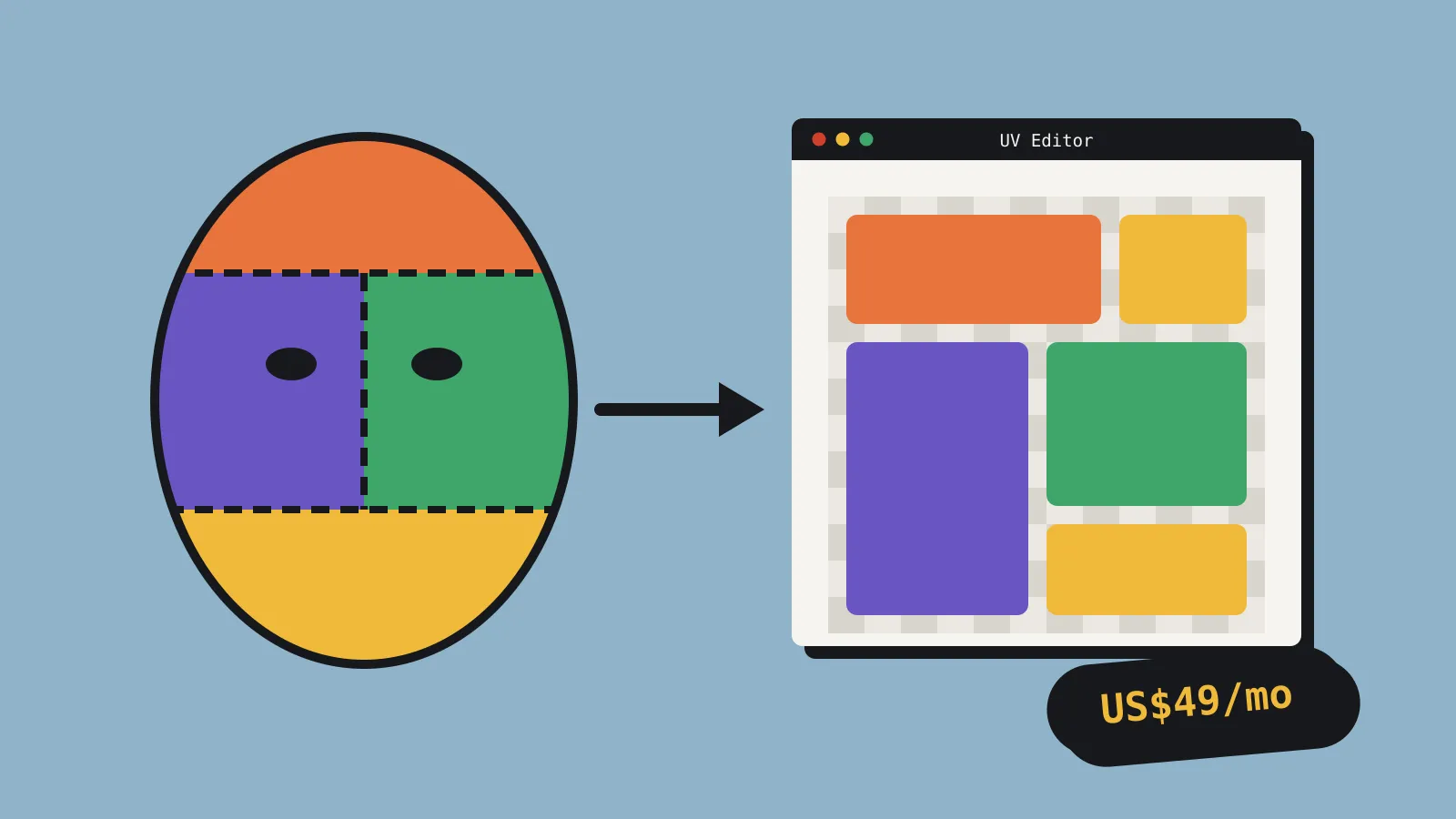
Poly count shouldn’t change, since the tool moves vertices rather than adding them. The things to watch are elsewhere. A tip thickness of 0 stacks vertices on one spot, which leaves zero-area faces. Some engines and exporters warn about or quietly strip those, and they can upset normals. Tapering a textured card also squeezes its texture, because the UVs don’t move with the vertices. For alpha-cut cards that may look fine, or it may thin the painted strands more than you wanted.
Licence terms are the other open question. The Booth page lists the add-on at no cost but states no licence, so it says nothing either way on commercial use or redistribution. The tool edits your mesh rather than shipping inside your game, so the main risk is low. If you plan to share it with a team or bundle it, ask the creator through Booth first.
What to do now
- Download and install. Get the zip from Booth. In Blender 4.0 or later, open Edit > Preferences > Add-ons, choose Install from Disk, pick the zip and enable it. If you tried an older build, remove it first, as the creator advises.
- Work on a copy. Duplicate your hair object (Shift+D), hide the original, and test on the duplicate. The change is destructive once you move on.
- Start small. Select one tip row with X-ray on so you catch back-facing vertices. Try a tip thickness around 0.1 to 0.2 before going to 0.
- Check the mesh. Turn on Statistics in the viewport overlays and confirm the vertex count is unchanged. If you used 0, run Merge by Distance on the tips and check your normals.
- Check the UVs. Open the UV editor on a tapered card and see whether the texture now looks squashed. Rescale the UV islands if it does.
- Export a test. Send one character through FBX or glTF into your engine and look at the tips under your real lighting and outline shader before you commit the whole head.