UVgami is a free UV unwrapper you can run in a browser
UVgami unwraps 3D models automatically, for free, as a web app, desktop app or Blender add-on. Here's when it saves a solo dev time.
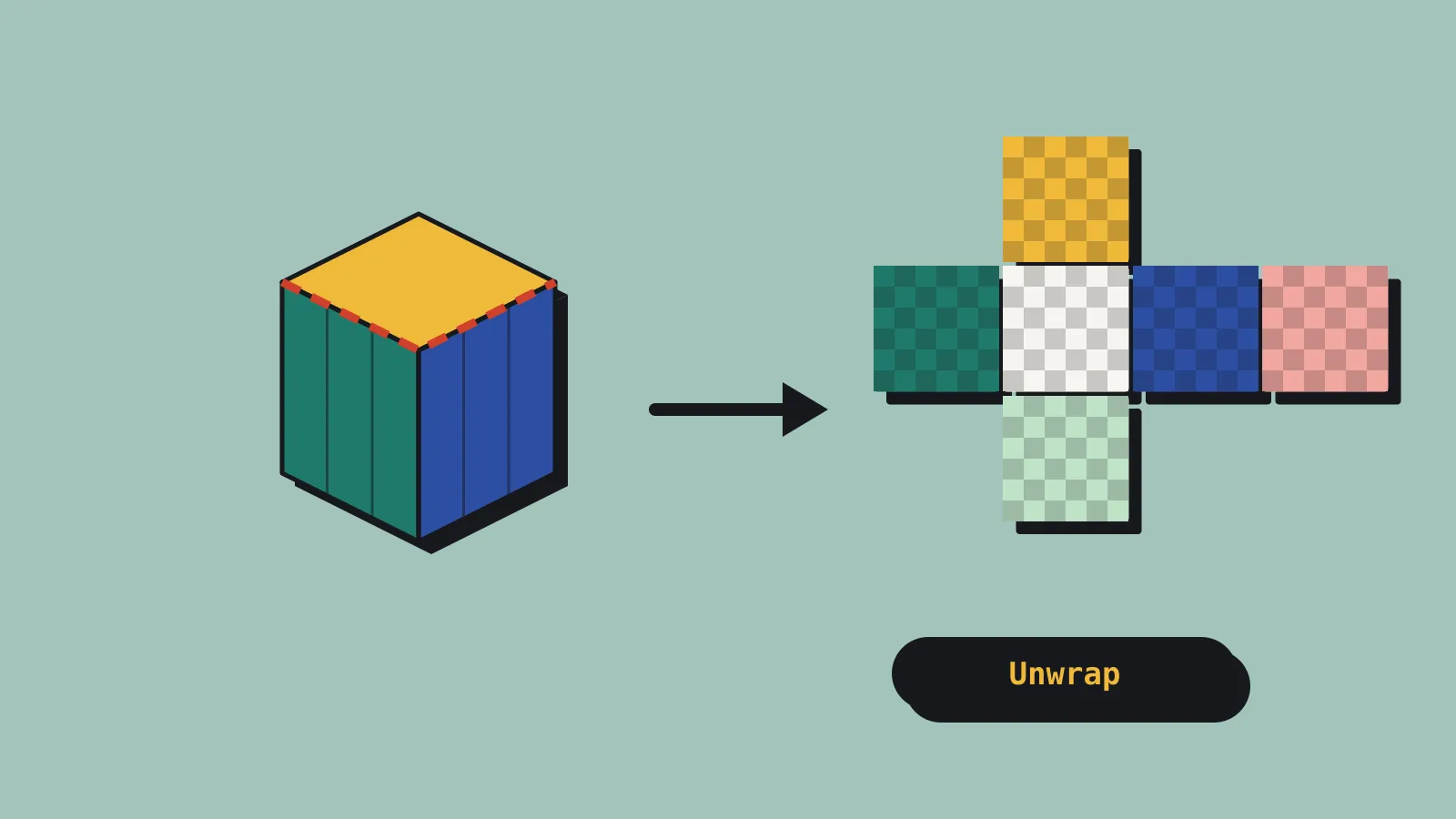
UVgami is a free automatic UV unwrapper that runs in your browser, as a desktop app or as a Blender add-on. Developer Daniel Boxer has added a batch of features in the past fortnight, including a hard surface mode and seam painting, and GameFromScratch covered the tool on 22 October. You drop in a model, press Unwrap and download it with a UV map. There’s no account, no model limit, and the site says you can use the results in commercial games.
If you’ve ever spent an evening marking seams on a crate, that pitch will sound good. We looked at what it does, where it falls short and how to fit it into a small team’s pipeline.
What UVgami does
UV unwrapping flattens a 3D surface into 2D so a texture can wrap around it. Most of the work is choosing where to cut (the seams) and keeping the flattened pieces (islands) from stretching. UVgami automates both.
It gives you two unwrapping engines. OptCuts places seams where they cause the least stretch and gives the cleaner result, but it can be slow on dense meshes. xatlas is very fast but cuts the model into more islands, so the site suggests it for lightmaps and quick texture painting.
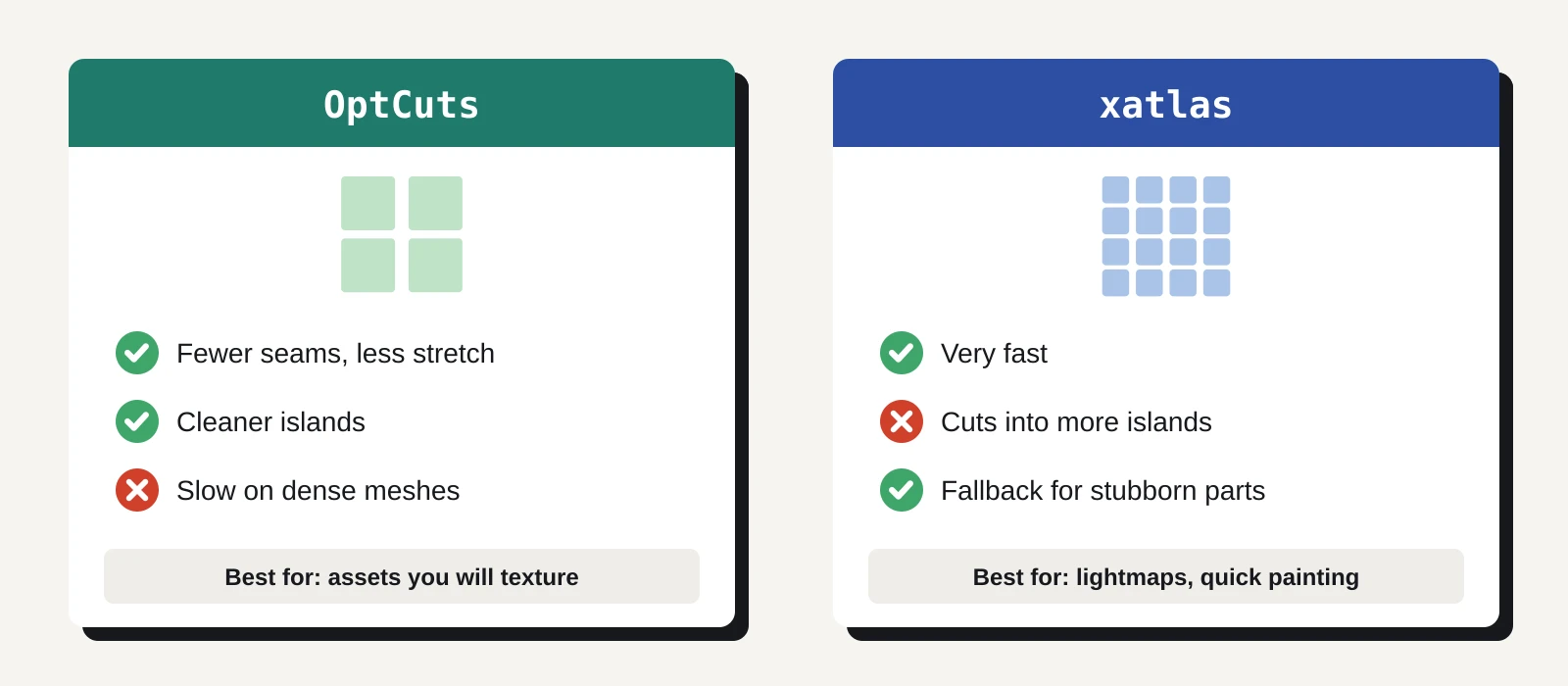
A Priority setting lets you lean towards less stretch (more seams), fewer seams (bigger islands with more stretch) or a balance of the two. Recent updates added:
- an Auto mode that picks Organic or Hard Surface handling for each part of the model
- a Hard Surface mode for props with sharp edges and creases
- Seam Restrictions, where you paint areas that seams must avoid, such as a character’s face
- tools to unwrap, relax or combine selected islands after the main pass.
For heavy meshes there’s a Proxy option. It unwraps a low-poly copy, then transfers the seams back to the original, which the site says is much faster. A time limit caps how long OptCuts can spend on each part. If OptCuts still has no map three minutes after that, xatlas unwraps the part instead, so a stubborn mesh won’t hang forever.
Formats, platforms and privacy
UVgami takes OBJ, GLB, GLTF, FBX and STL files, plus .blend files from Blender 4.1 or newer. OBJ and .blend inputs come back as OBJ. Everything else comes back as GLB.
The web app needs Chrome or Edge 116, Firefox 124 or Safari 17.4 and up. It unwraps on your own machine, and the site says your models aren’t uploaded anywhere. That matters if you’re under NDA or working with paid assets whose licence stops you sharing the files. The desktop app and the Blender add-on run the engine natively, which is faster than the browser.
GameFromScratch describes UVgami as free and open source, and the code is on GitHub. The site links to a licences page, but we couldn’t confirm the exact licence before publishing. If you plan to bundle or modify the tool itself, check the repository first. Using it to unwrap your own models is a separate question, and the site says plainly that commercial use of the output is fine. There’s an optional Ko-fi page if you want to support development.
What it means for a solo dev or small team
Auto-unwrapping has always existed in Blender (Smart UV Project) and in paid tools. The question is whether UVgami’s results are good enough to skip the manual pass on the assets that don’t deserve one.
For most indie projects, that’s a lot of assets. Background props, kitbash pieces, scanned rocks and anything that only needs a tiling material or a baked lightmap rarely justify hand-placed seams. If UVgami gets those to an acceptable state in a minute, you can spend your manual unwrapping time on the hero character and the weapon the player stares at all game.
The seam painting is the feature to test. Automatic unwrappers tend to put seams in visible places, and painting no-go zones gives you a little control without doing the whole job by hand. Hard Surface mode should also help with the boxy props that make up much of a typical game level.
There are limits. UVgami fails on geometry that can’t be flattened, such as non-manifold edges (edges shared by more than two faces) or faces with zero area. Messy kitbash and AI-generated meshes often have both, so expect to clean up first. The site doesn’t mention UV packing (arranging islands efficiently in the 0 to 1 texture space), so you may still need Blender or a packing add-on to get good texel density. And because the output comes back as OBJ or GLB, check that materials, vertex colours and custom normals survive the round trip before you commit a whole folder.
What to do now
Treat UVgami as a fast first pass, and test it on your own assets before you change your pipeline.
- Pick three typical models: a hard surface prop, an organic shape and something messy. Run each through UVgami with the default Auto mode and through Blender’s Smart UV Project.
- Compare stretch with a checker texture, count the islands and time each run. If you bake lightmaps, try xatlas on the same props.
- Try Seam Restrictions on whatever model has the most visible seams.
- Round-trip one model back into your engine. Make sure scale, normals and materials come through intact.
- If you’re on Blender 4.1 or newer, install the add-on and skip the file juggling.
If UVgami beats your current auto-unwrap on two of the three, it has earned a place in your toolkit. For the assets that need careful UVs, a manual pass in Blender, or a dedicated tool like RizomUV, is still worth the time. We covered a similar decision for sculptors in our ZBrush 2027 UV editor piece.