ModPerf opens your Blender modifier stack right at the cursor
Supra3D's new add-on opens the modifier stack in a floating panel on the Y key. Lite is free, Pro is US$12.99, and Blender 5.2 or later is required.

ModPerf 1.0.0 is a new Blender add-on from Supra3D that opens the active object’s modifier stack in a floating panel at your mouse cursor when you press Y in the 3D Viewport. It needs Blender 5.2 or later. There are two tiers on one Superhive listing: Lite costs nothing and Pro costs US$12.99. BlenderNation covered the launch on 23 November 2026.
What ModPerf does
The idea is simple. Instead of moving your eyes and mouse to the Modifiers tab of the Properties editor, you press Y over the viewport and the stack appears where you are working. Press Y again, click the close button or change modes and it goes away. There is also an entry under View in the viewport header if you prefer menus.
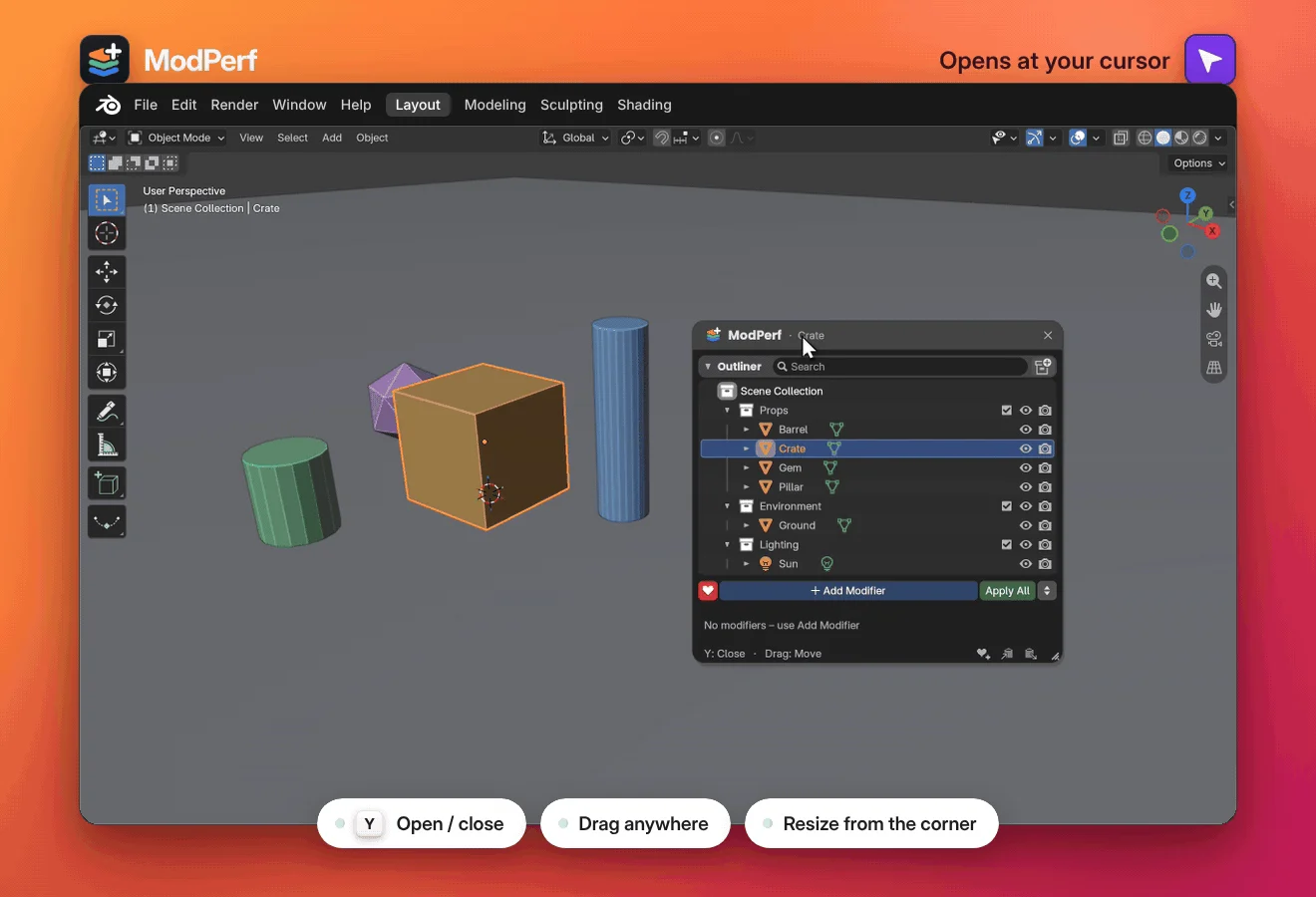
According to the ModPerf documentation, the panel mirrors Blender’s own modifier properties, including sub-panels and Geometry Nodes inputs. Each modifier header carries the usual toggles for Edit Mode, viewport and render visibility, plus apply, move, delete and a drag handle. You can drag the panel by its title bar and resize it from the corner. Shift+D over a modifier duplicates it, double-clicking a name renames it, and Ctrl+Z undo works inside the panel.
The FAQ says ModPerf stays in sync with the Properties editor rather than replacing it. Three limits matter before you install:
- It only works in Object Mode. The panel closes in Edit Mode, Sculpt Mode and other modes.
- The developer says it was built and tested on macOS. The listing says it has no platform-specific code, but Windows and Linux are not listed as tested.
- Linked objects are read-only in the panel, and library overrides can’t remove or reorder modifiers that come from the linked file.
The listing also says the add-on never connects to the internet. Its only requested permission is file access, used to save favourite stacks. The add-on is marked as Blender extension compatible and licensed under the GPL.
What Lite and Pro get you
The split is clear in the FAQ. Lite gives you the panel at the cursor, Add Modifier, every modifier setting, and apply, reorder, rename, duplicate and delete. That is the whole core workflow.
Pro adds four things on top:
- A built-in outliner for the View Layer, with select, hide, rename, drag into collections and Ctrl+F search.
- Favourite stacks: save up to five modifier stacks and add one to an object from a heart menu.
- Copy and paste of a whole stack onto every selected object.
- Apply All, which applies the full stack in one click.
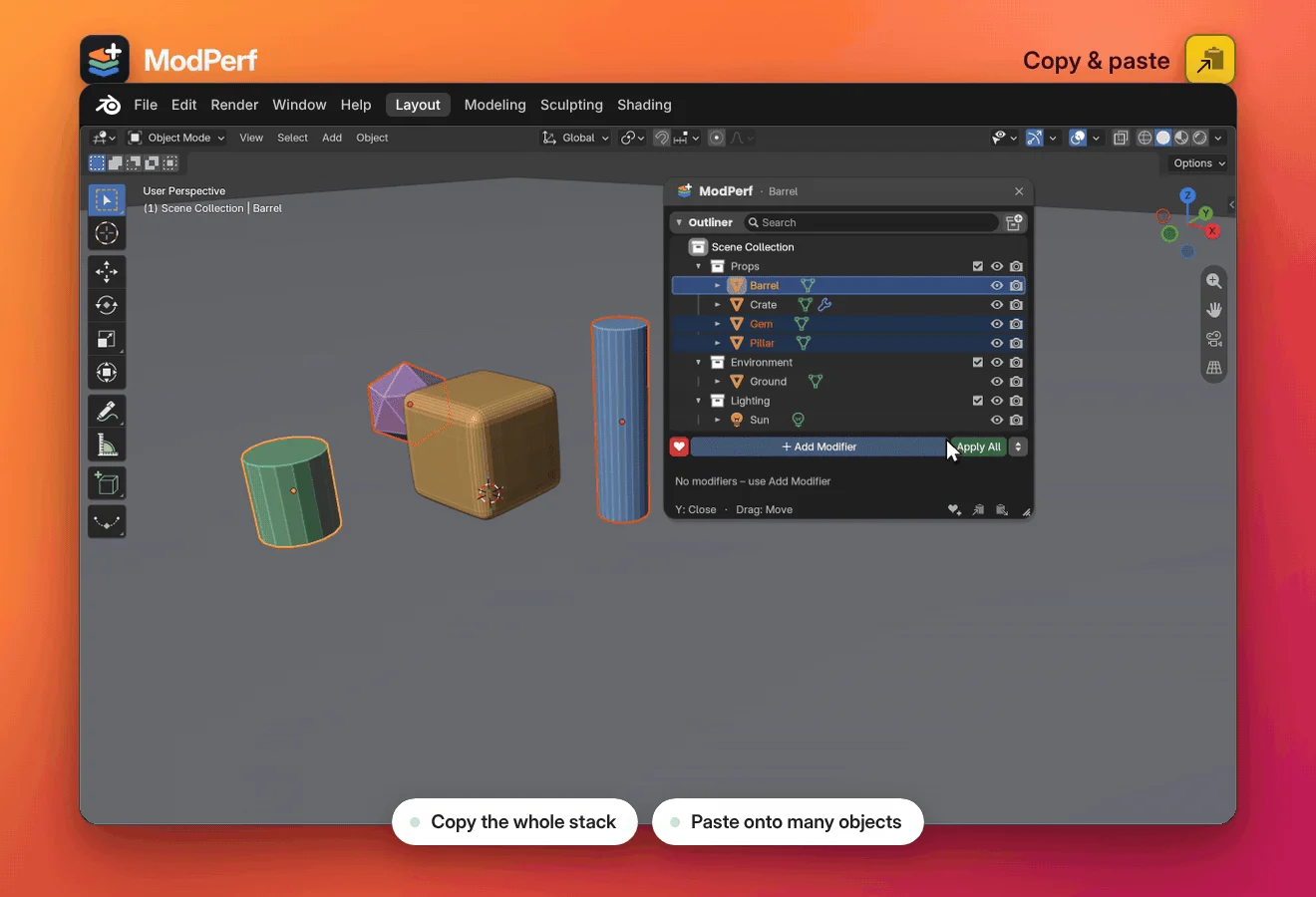
In practice the free tier is the main tool, and Pro is a set of batch and organisation features around it. That is the same pattern we saw with HueAtlas Lite’s free palette tier, where the free version covers the main job and the paid one saves time at scale.
Is Pro worth US$12.99 to a solo modeller?
For most solo developers, start with Lite. If your day is modelling props one at a time and stacking a Bevel, a Mirror and a Weighted Normal, the free panel covers everything you touch. You keep your eyes on the mesh and skip a trip across the screen dozens of times an hour.
Pro starts to pay off when you build kits. If you dress a modular environment and want the same Bevel, Triangulate and Weighted Normal setup on 40 wall pieces, a saved favourite stack is quicker than rebuilding it. The built-in outliner also helps if you hide the main Outliner to give the viewport more room. At US$12.99, it is cheaper than most of the trailer camera add-ons we compared, which ran up to $24.
Before you pay, know that Blender already does some of the Pro tricks for free. The Blender manual’s Editing Modifiers page lists Copy Modifiers to Selected Objects and Clear Object Modifiers under Object, then Modifiers, in the 3D Viewport. Copy Modifiers also sits in the Link/Transfer Data menu on Ctrl+L. The modifier stack page gives Ctrl+A to apply and Shift+D to duplicate when you hover a modifier, and Shift+A over the Modifiers tab opens the Add Modifier menu. Ctrl+1 to Ctrl+5 adds a Subdivision Surface modifier at that level to every selected object, per the Subdivision Surface page.
What Blender doesn’t have built in is the floating panel itself or named favourite stacks. A cheap workaround for favourites is a hidden “donor” object per setup that you copy from with Ctrl+L. It is clunkier, but it costs nothing and travels with your .blend file.
Free alternatives on extensions.blender.org
If you want more from the Properties editor rather than a popup, there are free GPL options. None of their listings describe a viewport popup panel like ModPerf’s, so treat them as different tools.
- Modifier List by Dan-Gry, version 2.0.4, Blender 4.2 or later. It reworks the modifier UI with favourites, search and per-modifier timing.
- Modifier Stack Manager by salaivv, version 1.4.0, Blender 4.2 or later. It turns the stack into a compact list, like the material slots list, with hotkeys for common actions.
- Modifier Manager by KewlSheet, version 1.0.2, Blender 4.2 or later. It adds bulk select, apply, remove and copy from the right-click menu.
ModPerf itself is not listed on extensions.blender.org that we could find. Superhive (formerly Blender Market) is the only place we found it, and the developer’s creator page lists no Gumroad store.
What to do now
If you are on Blender 5.2 or newer, here is a short checklist:
- Download Lite from the Superhive listing. Install the zip without unpacking it, from Preferences, Get Extensions, then Install from Disk.
- Check your keymap for anything else on Y in Object Mode. The FAQ says you can rebind the key under Preferences, Add-ons, ModPerf.
- If you are on Windows or Linux, test it on a throwaway scene first, given the macOS-only testing note.
- Use it for a week. If you catch yourself rebuilding the same stack or copying modifiers across a kit, Pro’s favourites and paste are what the US$12.99 buys.
If you are still on Blender 4.x, ModPerf won’t install. That is one more reason to plan your move to 5.x, along with features such as Gaussian splat import in Blender 5.3. Until then, the built-in shortcuts above and the free extensions cover most of the same ground.
Sources
- ModPerf: Manage Modifiers, Superhive product page, docs and FAQ, source of the cover and screenshots
- ModPerf: your Blender modifier stack right at your cursor, BlenderNation
- Editing Modifiers, Blender manual
- Modifier stack introduction, Blender manual
- Modifier List, extensions.blender.org
- Modifier Stack Manager, extensions.blender.org
- Modifier Manager, extensions.blender.org